Thursday, 30 December 2021

Advent of Learning 2021

I came across Advent of Code a few years ago and last year I introduced it to my team at Superdrug. For those who aren't familiar, it is a series of programming puzzles acros the 25 days of Advent; there are two puzzles each day, completing the first one unlocks the second one which is a variation or extension of the first. You can complete them in any language/environment.

This is what I've learned this year from doing AoC.

I had an aspiration this year to do at least some of the puzzles in JavaScript instead of C# so I could brush up on my JS a little bit/learn a JS unit test framework. But by the time 1st Dec rolled around I had nothing in place (or more accurately, I said I wanted to do some in JS but then did nothing else about it), so I've done everything in C# again this year, JS will have to wait another year.

I did a couple of the early days in bed first thing in the morning on my Surface Pro tablet, but I found the Type Cover keyboard a little too fiddly on an unstable surface so switched after that to doing them at my desk on a full-size keyboard.

Exponentials and Overflows

Day 6 featured exponential growth of lanternfish. If there's one thing we should have all learned in the past two years, it's how to model exponential growth... There was a trap in the puzzle in that you could complete Part 1 by modelling each individual fish, but the numbers of fish were so large in Part 2 that this approach wasn't viable (I briefly contemplated spinning up a high performance VM on Azure to run my solution...).

So I completely rewrote my solution to work on a Dictionary<int, int>, where for each day that passed the number of fish at each stage of their life dropped down a step. I ran this solution for Part 1 to confirm it gave me the same answer as my previous solution, then ran it for Part 2 and entered the result to the AoC site to get my confirmation. To my surprise the answer was still too low! Debugging into my solution I discovered some of the values in the dictionary were becoming negative numbers, and it took me a minutes thought to work out that this was probably integer overflow, the first time I can recall coming across it in 25 years of coding professionally (I very rarely deal with numbers large enough that the problem arises). I changed the dictionary to Dictionary<int, long> and the puzzle  was solved. 

Stacks

In Day 10's puzzle, you had to find a corrupt character in a string, which in another first for me marked the first time I can remember having to use a Stack. 

(I was watching my friend Dylan doing this one, and he figured out it was a Stack machine within a few seconds, but says that is the result of having had to write a LISP interpreter at college...)

A* and Djikstra

Day 15 required you to find the lowest risk path through a cave filled with chitons. Which in turn required me to learn about the Djikstra and A* algorithms, and then implement one of them. I found a C# version of A* that I could crib from, and wrote my solution. Which didn't (and at time of writing still doesn't) work.

However discussing it with my team, we were talking about practical uses for A* and think we could use it for planning routes through our stores when in-store staff are picking customer orders. 

LINQ

The puzzle for Day 7 involved crabs in tiny submarines moving from side to side and finding the most efficient point for them to align on (you get used to this sort of imagery when you do AoC...). For which based on the example I took to mean finding the point on which the most submarines were located. Which meant  I had to properly learn how to use the GroupBy method in Linq. And this was useful again on Day 14 where having constructed a long string of letters you had to find the most and least common occurring letters, I used GroupBy to project each letter and it's count, followed by OrderBy and OrderByDescending to get the two letters. 

On Day 4, we were playing bingo with a giant squid, and the task in Part 2 was to find the last winning bingo card from a set of cards. Which I was struggling with in using Enumerable.All, when I switched it to List.TrueForAll it worked first time. I've just looked up the docs for Enumerable.All and I have a feeling I may not have been calling it the correct way. (Incidentally our dev manager had a great hack for this day where after laying out the bingo cards, he transposed the columns into extra rows so that when checking for a winning card he only had to write a method for finding a winning row and not worry about columns as well.)

Also in the aforementioned C# implementation of the A* algorithm, it uses the List.FindIndex method which is not one I've come across before, and when discussing this with my colleagues they mentioned the List.IndexOf method. These two methods look pretty much identical, but it looks like their implementations are different - there's some discussion in the answers to this SO question which suggests that IndexOf is about 10 times faster than FindIndex.

Wrap Up

I've picked up quite a few things this year that I can take back to the day job, GroupBy being probably the one I'm most pleased about and potentially the most applicable. And I did set a new PB this year.


I also made some useful changes to my AoC project template. For next year I'd really like to make this a template in Visual Studio so I can have solutions named for the day they are for instead of multiple AdventTemplate solutions. And I still want to get a template together for JavaScript ahead of AoC 2022.

Sunday, 14 February 2021

Regional Settings in Azure App Services

Thought I should share something we've come across this week while testing our API on Azure...

I was testing some reporting functions where we put in To and From dates, and I entered 01/01/2021 and 31/01/2021 - and I got an exception. Looking it up in AppInsights, it was an InvalidFormatException coming from DateTimeOffset.Parse. I checked the same dates on our production site (currently hosted on-prem) and it was fine. So what's the issue?

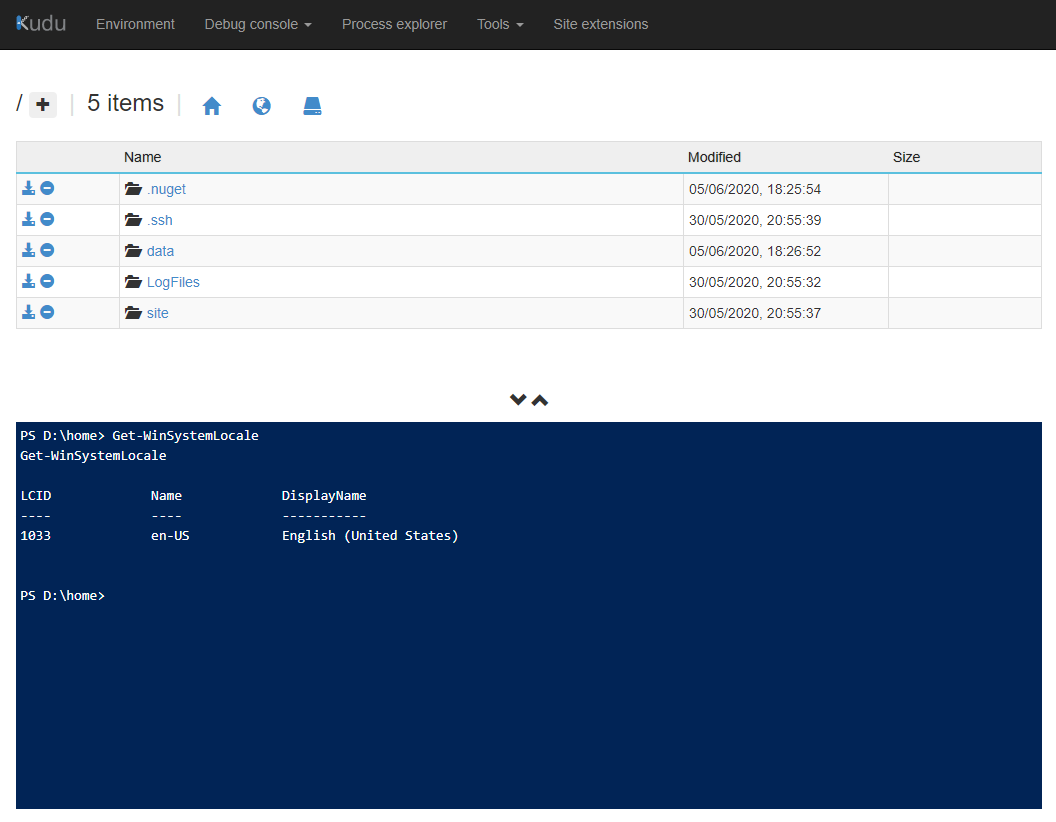
Well, it turns out that for an App Service instance, the regional settings (all those currency symbols and, most relevantly here, date formats) are set to US English, and trying to parse 31 as a month doesn't work. You can demonstrate this for yourself if you go to an App Service instance and then go to the Kudu debug console - in Powershell the command Get-WinSystemLocale will show you what your current region settings are set to. Here's a screenshot from one of mine which is located in the UK West Azure region:

Kudu console showing regional settings for an AppService instance

So how do you fix it? There is a counterpart Set-WinSystemLocale Powershell command, which you might be tempted to try, but it won't work as you need to be an administrator on the computer, which you aren't...

If you are using the .NET framework, there is a relatively simple fix: in your web.config in the system.web element, add a new globalization element:

<system.web>

    <globalization culture="en-GB"/>

</system.web>

(Or replace the region code with the one relevant to you - there's a good list of codes here). And then your API will parse dates correctly.

In .NET Core/.NET 5, you can set the CultureInfo for the current thread in the Configure method of your Startup class as laid out in this SO answer.

You can add an application setting to your app (WEBSITE_TIME_ZONE/TZ depending on whether you are using a Windows host or a Linux host) that manages which timezone it will use, and it would be neat if there was an equivalent that allowed to specify what regional settings you want to use.

Saturday, 30 January 2021

AZ-204 Study Materials

 I took - and passed :-) - the AZ-204 Developing Solutions for Azure exam yesterday. 


Study materials I used were:

  • The MS learning paths listed on the exam page
  • The Pluralsight exam prep path
    • In particular I found the Exam Alert sessions really useful, and also even though I've been doing MS exams on and off for 20 years, I found Matt Kruzcek's session on Preparing To Take The AZ-204 exam really useful the night before as a refresher on what to expect on the day, and usefully on the question types used on the exam
  • Before Xmas through work we had an invite to a Microsoft exam preparation session which walked through each entry in the list of skills measured in the exam; I picked up some really useful bits from this session so if you can get on one of them I'd recommend it


What Next?

I'm now debating what to study for next - I want to do the Azure Solutions Architect certification, but also (now that I've unlocked it) the DevOps Engineer Expert certification is likely to be both useful and relevant for work. So I'm not sure which one to work on...

Tuesday, 17 November 2020

10 VS Extensions You Might Have Missed

I presented a lightning talk tonight at DotNetOxford on '10 VS Extensions You Might Have Missed' covering some perhaps lesser-known items in the Visual Studio Marketplace. All of these extensions are free, and they all provide a useful addition to what you get out of the box in Visual Studio.

UPDATE: And now you can see the whole evening's set of talks at https://www.youtube.com/playlist?list=PL4qgjzgv2UYTTCbWELKjyJrcKMz02K7DH


Customize Visual Studio Window Title

https://marketplace.visualstudio.com/items?itemName=mayerwin.RenameVisualStudioWindowTitle


Azure DevOps Status Monitor

https://marketplace.visualstudio.com/items?itemName=UtkarshShigihalliandTarunArora.VSTSStatusInspector


Viasfora

https://marketplace.visualstudio.com/items?itemName=TomasRestrepo.Viasfora


Tweaks

https://marketplace.visualstudio.com/items?itemName=MadsKristensen.Tweaks


Trailing Space Visualizer

https://marketplace.visualstudio.com/items?itemName=MadsKristensen.TrailingWhitespaceVisualizer


Web Essentials

https://marketplace.visualstudio.com/items?itemName=MadsKristensen.WebEssentials2019


Const Visualiser

https://marketplace.visualstudio.com/items?itemName=MattLaceyLtd.ConstVisualizer


Warn About TODOs

https://marketplace.visualstudio.com/items?itemName=MattLaceyLtd.WarnAboutTODOs


Snippet Designer

https://marketplace.visualstudio.com/items?itemName=vs-publisher-2795.SnippetDesigner


Stack Trace Explorer

https://marketplace.visualstudio.com/items?itemName=SamirBoulema.StackTraceExplorer


I hope everyone got something out of this and found at least one extension that might be useful for them!

Sunday, 27 September 2020

ASP.NET Bundling and http 403 Errors

 So I'm probably late to the game in running into this, but it bit me at work last week and I thought it was worth writing up...

I made a change to one of our internal websites that involved bringing in FontAwesome so I could use some of it's widgets. I downloaded the FontAwesome CSS and font files to serve them from our internal server, and I added them to my project under the Content folder, and I created a new StyleBundle that referenced the CSS file so I could get that sweet minification. I ran up the site on my laptop and there were my new widgets. Cool. I committed and pushed my changes, had my pull request accepted, and Azure DevOps deployed the new build to the server. I ran it up on the server - and my widgets weren't showing. But, but, but, it Works On My Machine. Time for some investigation.

My first stop was to look at the console in Chrome, where there was an important clue:


A http 403 error? But where was that coming from and how did it relate to FontAwesome? Step 2 in my investigation, look at the raw request in Fiddler and see where the 403 is coming from.

So, the first request produces a 301 result, which for those of you who haven't memorised the http status codes is 'Moved Permanently' and provides a Location in the response headers for the browser to redirect to. Notice in the Fiddler screenshot that the 301 result is generated by a request to /Content/FontAwesome, which corresponds to the name of my bundle, but the 403 result comes from /Content/FontAwesome/ - which corresponds with the path in my project that I put the FontAwesome CSS files into. 
So, there's an issue with bundling when your bundle name matches a path in the file system, and the result is this 301-403 dance where your CSS files doesn't get loaded. And the solution is obvious - don't give your bundles a name that matches a path in the file system. In my case, I renamed my bundle from ~/Content/FontAwesome to ~/bundles/FontAwesome and all was right with the world.
Why did it work on my machine? Well, in one of those 'obvious in hindsight' things, I forgot that when you have debugging enabled in your web.config, ASP.NET bundling doesn't take effect and your files that would go through the bundling are actually served straight from the file system. When I ran my code locally without debugging, I saw the same behaviour on my machine. 
Why did I pick a bundle name that matched the file system in the first place? Simple - I was following the same pattern as the boilerplate bundling code gives you for StyleBundles:
bundles.Add(new StyleBundle("~/Content/css").Include(
                      "~/Content/bootstrap.css",
                      "~/Content/site.css"));

All the above relates to .Net Framework ASP.NET sites. What happens in ASP.NET Core and can you have the same issue? Well, if you go down the bundling route in ASP.NET Core, it works differently and your bundling code produces a file for you to include in your markup rather than a virtual directory. Which means there shouldn't be an issue of a virtual directory name clashing with a physical one. See the MSDN documentation for bundling here.

Monday, 10 August 2020

Linq vs Regex

I recently had to write a password validator as part of a technical test for a prospective employer, where three of the conditions were:

  • Passwords must contain an upper case character
  • Passwords must contain a lower case character
  • Passwords must contain a number

Having recently had occasion to learn that you can treat a string as a collection of characters and then use Linq to run set operations across the collection, in the test I used this code:

password.Any(char.IsUpper)

password.Any(char.IsLower)

password.Any(char.IsDigit)

But I worked through the same test again yesterday as an exercise with a friend, and we used Regex instead, so the code became:

new Regex(@"[A-Z]").IsMatch(password)

new Regex(@"[a-z]").IsMatch(password)

new Regex(@"[0-9]").IsMatch(password)

Plainly either version works; I don't see myself as a great Regex developer, which is partly why I reached for the Linq solution first. But seeing the solution written both ways I got to wondering if there was a performance benefit one way or the other. Clearly, there's only one way to find out...

I wrote up a console app that would use a Stopwatch to time each operation, and I ran it over 100 iterations and reported the average number of ticks taken (I started off measuring the number of milliseconds taken but this was zero...). 
And we can see that in two cases the Regex outperforms the Linq version, and in the third it's more or less even. Job done!

But... what happens if we up the number of iterations? Here's the same code run across 1 000, 10 000 and 1 000 000 iterations.

Across more iterations, the Linq version performs faster!

So which should you use? Well, as with most things programming, it depends... It's important to remember that we're talking about differences of only a tick or two, measurements so small that your user won't notice. So with that in mind, we should think about other considerations, like our relative skill levels between Linq and Regex, and which version we find more accessible and readable. So for me, if I was making the choice I'd opt for the Linq versions; I tend to find Regex somewhat impenetrable. But you might make a different choice, and that's fine too.

If you want to try my code (and the performance might be different on your machine), my code is at https://github.com/philpursglove/LinqVsRegex

(Aside: I was very pleasantly surprised to find the tooling support for writing Regexes in Visual Studio has massively improved, when you start writing your expression now you get Intellisense that shows you some of the options, and you get colour-coding inside your expression that helps you identify the parts of your expression)


Update: After I posted this, Steve got in touch to say that compiled Regexes may offer a performance benefit. You specify that a Regex is compiled by adding an option into the constructor:
new Regex("[A-Z]", RegexOptions.Compiled)
When a Regex is compiled, it is converted to MSIL and executed by the JIT compiler, and the MSIL is then cached by the regular expression engine. The price you pay for this is a longer startup time as the compilation happens, but then you get a faster execution. (Microsoft has a whole article on best practices for Regexes that covers this and some other considerations, and there's another piece about compilation and reuse of Regexes).
So let's kick the tyres on this... I added a switch to my code that allows you to switch compilation on and off. Here's some numbers over 100 iterations with compilation on.
We can see immediately that the startup impact of compiling the Regex adds an order of magnitude of overhead to our code (but remember that the practical impact of this is probably still only a matter of milliseconds), and over a relatively small number of iterations this means it will be significantly outperformed by the Linq solution. If we up the number of iterations, does paying that upfront cost return us any kind of performance dividend? Here's the same code over 1 000 000 iterations.
Over more iterations, the upfront cost of compiling the Regex gets amortised down, but (on average) it still gets beaten by Linq (and I've also tried it over 10m and 100m iterations and this pattern remains consistent). 
So Linq is consistently better, yes? Maybe, maybe not... For one thing, the Regexes I'm using are pretty simple - I have a sneaking suspicion that a compiled, more complex Regex would turn out to beat a number of chained Linq expressions. Some of the other options for Regex may also have an impact.

Steve also pointed me to Benchmarkdotnet to look at other aspects such as memory usage to get a fuller picture not only of which method looks better from the raw timings but also in terms of memory usage etc, which I may look at in a future post...

Saturday, 25 July 2020

Controlling Your Costs With Azure Policy

I made a mistake. I've been trying to figure something out in Azure, and I needed a website to do it with, so I spun one up on a new App Service Plan. I missed that the default plan is a premium plan, and I only noticed this the other day. In the meantime, my site has been racking up charges, and as a result my Azure bill for July is going to be ... about £100. 

Which is (kind of) fine, experience is the best teacher, it's my mistake and I'm going to own it. It's not a problem-causing amount of money for me. And I'm not averse to spending that kind of money on Azure services on purpose, it's just not the sort of thing I want to be doing again by accident.

Fortunately, I know by using Azure Policy that you can put all kinds of controls in Azure to stop people doing this sort of thing and ending up costing your company lots of money, so I've put the same kind of control in for myself.

What I need is a policy that stops me creating any more premium App Service Plans, and this is not that difficult to achieve.

Policies work on an 'if-then' model, you give the 'if' clause a set of conditions and if the set of conditions matches, then the 'then' clause fires. So in my case when I'm creating a new Azure resource my conditions will be: the resource type is an App Service Plan, and the SKU name is not set to 'F1', and my action will be to stop the action i.e. prevent the resource from being created.

Policies are written in JSON, you can write them directly in the Azure Portal, there is also a VSCode extension to help you with creating them. Here's a skeleton policy:

"policyRule": {
    "if": {
      }
    },
    "then": {
      "effect"""
    }
  }

Effects can be any of a number of values, including "deny" which disallows the action completely, "audit" which allows the action but logs that your policy is being violated, and a number of others including some that will change your action to make it comply with your policy.

So clearly the effect in my then clause needs to be "deny", so that it correctly prevents the action. Which leaves me to work out what the correct if clause is. As I said above, I have two conditions, so I'll be using the allof condition which translates to an AND operator (there is also anyof which is the equivalent of OR). My first condition is that I want the policy to act on App Service Plans, so I'll need to be looking at the type of thing that's being created. Policies use a system of aliases for types (with namespaces), there are two ways to find the alias you want. The hard(er) way is to use the Azure command-line tool to query a list of available aliases as suggested in the documentation e.g.

az provider show --namespace Microsoft.Web --expand "resourceTypes/aliases" --query "resourceTypes[].aliases[].name"

The easy way is to go through the resource creation process in the Azure portal, through to the 'Review and Create' step. Once there, don't create the resource, but download the ARM template, and then search through it for the 'resources' element; inside the resources element, look for a 'type' property, and the value of the property is the alias you want. Which tells me that for an App Service Plan, the alias I should be using is 'Microsoft.Web/serverfarms'. On to the SKU value! I need to look at a property of a serverfarms object and check whether or not the value is 'F1' (the name of the free tier). And if we go back to the command-line query and browse the results, we can see that under Microsoft.Web/serverfarms there is a sku.name property; we can use that with a 'notEquals' operator to check the value.

So our whole policy looks like this:

"policyRule": {
      "if": {
        "allof": [
          {
            "field": "type",
            "equals": "Microsoft.Web/serverfarms"
          },
          {
            "field": "Microsoft.Web/serverfarms/sku.name",
            "notEquals": "F1"
          }
        ]
      },
      "then": {
        "effect": "deny"
      }
    }

I applied this policy to my subscription, and here's what happens if I now try to create a premium service plan.

Note that the policy evaluation happens in the review stage, before the resource is created.

We've looked here at creating a basic (but useful!) Azure policy to restrict creation of a premium Azure resource, and you can apply that to your own subscriptions to help keep you from making the same mistake I did. And this is only a taste of what you can achieve with Azure Policy.

(And now I'm protected from accidentally creating any more premium App Service Plans - but I could create a premium database, or a storage account, or a VM... Hmm, maybe I need to go write some more policies...)

Thursday, 23 April 2020

Reading and Writing Azure KeyVault Secrets with C#

Every application has secrets of one kind or another; database connection strings, API keys or other credentials are all common examples and you can probably think of others without having to try too hard. So every application needs to be able to store, read, update and remove secrets. 

Azure KeyVault is the Azure store for securely storing and accessing secrets, in this blog I'm going to go through how to setup a C# application to get your secrets in and out of KeyVault.

So I've set up a KeyVault through the Azure portal, and I've added a secret to it.


The next thing we need to do is set up a principal in Azure Active Directory; this will give our application a context by which it will be able to access the KeyVault. This can also be done through the Azure portal by entering 'Active Directory' in the top search bar. Once in the AD blade, you need to create a new app registration, so click on 'App Registrations' in the menu and then click 'New Registration'. You'll need to enter at a minimum a name for your registration, and you can optionally enter a URI that receives an authentication token. I'm not entering one here as my demo will just be a console application, but you might need one depending on your individual applications. Note that if you do enter a URI, it must be either secured by SSL e.g. https, or it must be a http://localhost address.

Once the registration is created, you'll see it in the portal. You can see the clientId here, which we'll need later.
We'll also need to create a secret that our application will use to prove its identity to AzureAD when we try to request an authentication token. (Think of the clientId and secret as being like a username/password combination). Click on Certificates and Secrets in the menu, and then click the New Client Secret button. Enter a description and how long the secret should be valid for, and create the new secret. Like the clientId, we'll need the secret later, so make a note of it now as you will not be able to view it later on.
With the App Registration setup, we now need to associate that with the KeyVault. Return to your KeyVault in the portal, and click Access Policies in the menu. To allow the app to access the KeyVault, click the Add Access Policy link. Here you can set the permissions that your app will have against your vault. There are a set of predefined templates you can use, or you can assign individual permissions. For now, I just want to read and write secrets, so in the Secret Permissions dropdown I'll just select Get/List/Set/Delete.
With the permissions selected, you need to associate them with the principal we created in Active Directory. Click Select Principal to open the blade. You'll see a whole set of standard principals, so the easiest way to find the correct principal is to enter the name in the search box.
Once you've selected the principal, click Add to close the blade. And then click Save to save your application's access policy.


With all that prep work done, we can go write some code!

In Visual Studio, start a new .NET Core Console app, and add the Nuget packages Microsoft.Azure.KeyVault and Microsoft.IdentityModel.Clients.ActiveDirectory to it. 

The KeyVaultClient class is what we'll use to perform operations against the vault; it has a number of different constructors depending on your scenario, the one I'm using takes an AuthenticationCallback delegate. 
KeyVaultClient vaultClient = new KeyVaultClient(new KeyVaultClient.AuthenticationCallback(Program.GetToken));


The GetToken method's signature must match what the delegate expects - three string parameters for authority, resource and scope, and, probably because I don't deal with delegates very often, this was the part of this I found the most confusing as I couldn't see where they were coming from. The answer is that they are filled in by the callback at runtime, you don't need to supply the values yourself at any point. This is also where the clientId and secret we created earlier come in. Here's a sample GetToken method.
private static async Task GetToken(string authority, string resource, string scope)
{
    ClientCredential credential = new ClientCredential(clientId, clientSecret);

    var context = new AuthenticationContext(authority, TokenCache.DefaultShared);

    var result = await context.AcquireTokenAsync(resource, credential);

    return result.AccessToken;

}


Once we have a KeyVaultClient instance, we can start to query our vault. Your goto methods are most likely to be GetSecretsAsync, GetSecretAsync and SetSecretAsync, but there's a whole raft of methods for managing keys, secrets and certificates. GetSecretAsync returns a SecretBundle, of which the most relevant property is the actual value of the secret. Calling SetSecretAsync will create a new version of a secret; this will include creating the secret if it doesn't already exist in your vault, and it will also create a new version even if you set it to the same value as it already holds (GetSecretAsync also has an overload that allows you to specify a version identifier). So putting it all together here's what our console app looks like.

class Program
{
    static string clientId = "myClientId";
    static string clientSecret = "myClientSecret";

    static async Task Main(string[] args)
    {
        KeyVaultClient vaultClient = new KeyVaultClient(new KeyVaultClient.AuthenticationCallback(Program.GetToken));

        string vaultAddress = "https://myVaultUrl";
        string secretName = "secret1";

        var secret = await vaultClient.GetSecretAsync(vaultAddress, secretName);

        Console.WriteLine($"Current secret value: {secret.Value}");

        Console.ReadLine();

    }
            
    private static async Task GetToken(string authority, string resource, string scope)
    {
        ClientCredential credential = new ClientCredential(clientId, clientSecret);

        var context = new AuthenticationContext(authority, TokenCache.DefaultShared);

        var result = await context.AcquireTokenAsync(resource, credential);

        return result.AccessToken;
    }

}
And if I refer back to my vault, you can see that the value of secret1 is indeed 'it's a secret'

So, in this blog we've seen how to create a console application that authenticates against Azure Active Directory and then reads and writes secrets to and from Azure KeyVault. 

I've created a Github repo at https://github.com/philpursglove/KeyVaultDemo with a complete solution for listing, creating, updating and deleting your KeyVault secrets.

Thursday, 1 January 2015

Introducing Threepio!


I saw this a few weeks ago and thought 'That might be interesting', since it seems to combine two of my favourite things, Star Wars and code, so I signed up. On 21st December beta access to the API was opened up, and I started having a look at it. Almost immediately, a set of helper libraries appeared for different stacks (Javascript, Ruby, even PHP), but none for .net. So I sprang into action (well, it was more of a lurch really) and started to put together some C#, and over the Christmas break I've finished it (or at least I have it at a point where I'm prepared for other people to look at it).

It's written in C(#), and it translates from JSON into .net objects, so I had to call it Threepio...

The code is on Github at https://github.com/philpursglove/Threepio.

Things I want to look at/think about doing:

  • Should the GetPage methods return IEnumerable instead of List?
  • The Get(id) methods throw an exception if you call them with an invalid id, inline with this which I read yesterday would it be better to change them to TryGet?
  • Putting up a Nuget package.

Sunday, 13 April 2014

Book Clearout

I had a tidy-up and spring clean of my home office yesterday, and I cleared a lot of books of my shelves. Before they go to the tip for recycling, here's a list of what I cleared. If anyone wants any of these, let me know by 18th April.

A Programmers Introduction to C#, Eric Gunnerson
Visual C# Language Reference
Programming ASP.NET 2.0 Advanced Topics 2005 Ed, Dino Esposito
Debugging .NET 2.0 Apps, John Robbins
Javascript: The Definitive Guide 4th Ed, David Flanagan
ASP.NET 2.0 Cookbook, Geoffrey LeBlond
Essential ASP.NET 2.0, Fritz Onion
nHibernate in Action, Pierre Kuate
ASP.NET 2.0 Server Control & Component Development, Shahram Khosravi
The Definitive Guide to The Microsoft Enterprise Library, Keenan Newton
ASP.NET 2.0 Anthology, Jeff Atwood
ADO.NET & ADO Examples and Best Practices, Bill Vaughn
Pro ASP.NET MVC 1.0, Scott Hanselman
Building a Web 2.0 Portal w/ASP.NET 3.5, Omar Al-Zabir
Designing and Developing Web-Based Applications Using the .NET Framework, Mike Snell
Distributed .NET Programming in VB.NET, Tom Barnaby
Applied ADO.NET, Mahesh Chand
Developing ASP.NET Server Controls & Components, Nikhil Kothari
Enterprise Development with Visual Studio.NET, UML & MSF, John Erik Hansen
Inside VS.NET 2003, Brian Johnson

Wednesday, 19 February 2014

64-bit Considered Harmful...

Thought I should write about a problem I ran into last month in the hope that it saves someone else some heartache (or potentially someone tells me how to fix it...)

A few weeks ago, while I was searching for something else in Visual Studio's Settings, I ran across this option:
I run on 64-bit Windows, so I figured this would be a sensible option to set and switched it on. And all was good in the world.

Until I started on a new project a couple of weeks later, that is, when running it up for the first time I was puzzled to see this YSOD:
Invalid program? What the hell's that coming from? The only thing that I could immediately think of was that the last thing I did before hitting F5 was to install Ninject. I cast around for an hour or so trying assorted types of restarting processes/PCs etc, before going to Twitter...

Fran quickly replied with this:

which was the clue I needed:
And yep, as soon as I turned off 64-bit IIS Express the world righted itself...

So I'm interested to know what causes this and whether there's a way to successfully run Ninject in 64-bit code (I'm quite prepared for this to be something related to my inexperience with Ninject).

Friday, 16 March 2012

GiveCamp


What’s A GiveCamp? 
I spent the weekend of 21st-23rd October last year working for charity at GiveCamp. What’s a GiveCamp? Givecamp is an event where technology experts give their time over a weekend to build projects for charities. It’s funded by corporate sponsorship, which means it’s free to attend for both the charities and the volunteers. The concept originates from Microsoft in Texas in 2007 – since then over $1m worth of time and consultancy has been donated. In 2011, GiveCamp UK was the first GiveCamp to be held outside the USA. I got involved through knowing the organisers; many of my friends from the UK Microsoft programming community were also there. 


How Does It Work? 
We assembled at UCL’s Bloomsbury Campus on the afternoon of 21st October, where there was a chance for a cup of coffee and a gossip with people while we waited to find out where we needed to be. At about 5pm we all trooped into a lecture theatre, where representatives from a set of charities each delivered a short pitch about their charity, and more importantly, the project they wanted people to tackle over the weekend. In the main room, there was a chance to speak to the charity reps again to get more detail on their project, and everybody gradually organised themselves into teams. 
I chose to work with a charity called Scene And Heard , who run playwriting courses for children – the plays the children write are then performed by volunteer professional actors. The project that Scene And Heard pitched for was to build them a ticketing system. As we got into the detail of their requirements, we all realised that rather than building a system for them ourselves, we could set them up with an account on EventBrite, which is a website that provides ticketing services for events. And EventBrite wouldn’t cost them anything to use. Score! And even better, at that point the catered dinner arrived! 
Having such a quick and easy win for us was a great boost for our team, and, fortified by yummy sausages and mash, it meant we could go back to Scene And Heard and say ‘what else can we do for you?’. It transpired that they were managing their lists of volunteers, plays and performances in a set of Excel spreadsheets and, in their own words ‘a car-crash Access database’. This, then, would be our project for the rest of the weekend – to meld all these elements into a single, web-based database. We started to explore some initial options using a new Microsoft technology called Lightswitch up to about midnight on Friday night. 
On Saturday morning we arrived back at our table in dribs and drabs, but were greeted by a cornucopia of bacon sandwiches, sausage sandwiches and pastries! I found I’d made exactly the right decision to stay at the Premier Inn round the corner – some people had elected to take the ‘camp’ part of GiveCamp quite seriously and there was a large room full of tents and sleeping bags, however it seemed that one of the campers was an epic snorer, and there were several bleary-eyed developers to be seen. 
Fuelled by the aforementioned breakfast and endless cups of coffee and tea, we were all back at our table and working by 10am, however we were all starting to struggle with problems with Lightswitch, in part because none of us had used it before. After a lunch of delicious burritos, at about 2pm, we had a stand-up where we reviewed the progress we’d made and discussed the problems we were having (a stand-up is a short project status meeting (that is held standing up to remind people to keep the meeting short)). 
The various problems we were having with Lightswitch were killing our productivity, so we took the decision to throw it all away and switch to a different style of web development. This meant we would be up against it to get things delivered, but crucially the switch meant we could all be much more productive and we started to see the benefits almost straight away. We worked into the night, stopping only for pizza and the odd bottle of beer, but by 2am we were all flagging badly and agreed to call it a night. 
Sunday morning was the home stretch – the cutoff for all teams was midday, which was probably just as well as otherwise we’d all have kept going until UCL kicked us out. We still had loads to do however, and I was back at our table at 8am, typing with one hand and eating a pain au chocolat with the other. We continued to make steady progress and integrate the different pieces of work we’d all been doing, right up to 12, and we agreed to continue to work on the project after the weekend in our own time to complete the parts we’d been unable to finish. There were a couple of hours to decompress and chat to other teams to see how they’d been getting on, before we all trooped across the road into a lecture theatre so each team could present on what they’d been doing. (You can see Dan Elliott’s presentation on the You Can Hub project through the medium of interpretive dance at http://tinyurl.com/agileguygivecampvideo). Our new friends from Scene And Heard were thrilled with how much we’d been able to accomplish in less than two days – ‘you’ve changed people’s lives’ was their reaction, and there were several people with tears in their eyes. Not me, I just had something in my eye. Honest. 
All the projects were seriously impressive, everybody had worked flat out all weekend and many people had learned on the spot things they’d never needed before, from integrating YouTube into a website, to using EventBrite like us, to building a CRM system in a weekend. There was a prizegiving ceremony - many companies had donated prizes to be given out, and courtesy of the Charity Technology Trust everyone received a brand new solid-state disc drive for their laptop – before it was time to say our farewells and head home for some much-needed sleep. As GiveCamp was held over a weekend, I was able to use my WSP volunteering days to take two days off afterwards to recover! 


What Did I Learn? 
As well as picking up some techniques for recording and managing project requirements and measuring progress, my biggest takeaway from GiveCamp was the importance of flagging up project concerns early. Our decision to try Lightswitch cost us over half a day, which in a time-critical situation like this was time we couldn’t afford, when I’m not sure any of us was absolutely convinced it was the right thing to do. My other takeaway is how much can be done in just two days; for an individual, it’s difficult to achieve anything substantial in such a short space of time, but a team of highly skilled and motivated people working together for a couple of days can deliver impressive results. I’m already looking forward to seeing what we can do at GiveCamp 2012. 


Friday, 18 November 2011

The Case of the Hung Visual Studio Installer

(with apologies to Mark Russinovich :-) )

I got my shiny new work laptop on Tuesday this week, a HP EliteBook 8560P. Mmm, shiny.

So a portion of the remainder of my week has been spent on installing things like SQL Server and other development tools on it. Until I got to Visual Studio 2010, for which the installer hung at the end of the first screen (the one where it installs Setup components before you get to choose which bits of VS you actually want to install).

A few details. I'm running Windows 7 Enterprise, and I was installing Visual Studio 2010 Ultimate. I was using Virtual CloneDrive to mount an ISO image of the Visual Studio DVD from a USB hard drive. All things I've done before without any issues.

Thought 1: My ISO image has got subtly corrupted somehow. I downloaded from MSDN a new ISO image of Visual Studio. No joy.

Thought 2: There's a problem with running the installer off a mounted ISO. Despite being sure I'd successfully run off a mounted ISO before, I burned a DVD and ran the installer from there. No joy.

At this point I tweeted that I was struggling:
I was grousing more than expecting anyone to offer advice, but I received these tweets back:
Fair enough, I'll give that a go:

Thought 3: It is working, I'm just not giving it long enough to work. I ran the installer for at least 8 hours overnight Wednesday. No joy.

At this point I was Googling pretty hard for issues relating to the Visual Studio hanging, but no one seemed to have had a problem at the same stage as me. It did lead to me trying

Thought 4: A missing Registry key
I added the key. No joy.
and
Thought 5: The installer was trying to write temporary files to the external USB drive. I copied the ISO onto the hard drive, disconnected the external USB drive and re-ran the installer. No joy.

Desperation was setting in at this point, and I began to wonder if the problem was my install order.

Thought 6: Because I've installed SQL Server (and SQL Express), something in SQL Server is interfering with the install. I uninstalled both instances of SQL Server 2008 and the shared components. No joy.

Here comes the science bit...
I'd already been running SysInternals' Process Explorer to try and see what was going on with the installer process but it didn't really show me enough detail. However I notioced from a discussion on the Microsoft forum someone else using Process Monitor, so I fired that up instead, and filtered it so I was just looking at setup.exe. This is what I saw:

My first thought here was: why is setup.exe trying to write files to live.sysinternals.com?, closely followed by: have I done this right or is Process Monitor somehow screwing up these results? And suddenly, in one of my occasional flashes of intuition, it clicked.

The Answer
I have a drive mapped to \\live.sysinternals.com\tools, and the drive that I have mapped is the I: drive. 'Cos, y'know, Internals begins with I. Turns out that the Visual Studio installer maps a folder in your %TEMP% folder to I: too and then uses it for decompressing some of the CAB files that the installer uses. Since I already had an I: drive, the installer was trying to use it but failing as I (obviously) don't have write privileges to the SysInternals folder, and the whole thing ended up in an infinite loop. I unmapped my I: drive from the SysInternals folder, re-ran the installer and everything installed successfully.
Now, clearly, the set of people who a) have an I: drive mapped but b) don't have write access to it and c) need to install Visual Studio, is going to be pretty small, but at the same time I can't help feeling the installer should have handled this better. In the end it was a simple workaround for me to resolve it, but it took me too long to discover the problem. Logged on Connect at https://connect.microsoft.com/VisualStudio/feedback/details/705657.

Tuesday, 8 November 2011

World Clocks with jClock and TimeZoneInfo

Everyone else seems to be writing about the clocks changing this week, I don't see why I should miss out...

Last year while I was working on our group intranet project, I wrote a web part for diplaying times around the world corresponding to some of our major offices. It uses the jClock jQuery plugin so it does actually tick every second instead of being static (and in a future release I'm going to change this so it doesn't show the seconds and only ticks every minute instead). The list of locations is driven by an XML file so we can dynamically add more if we open offices in other time zones.


jClock by default shows you your local time, or you can give it an offset (in decimal) from GMT/UTC if you want to display the time from a different timezone. So the XML file that we went into production with last year was along the lines of;
<locations>
    <location>
        <name>London</name>
        <offset>0</offset>
    </location>
    <location>
        <name>Stockholm</name>
        <offset>1.0</offset>
    </location>
</locations>

The serverside code in the web part then uses a HtmlTextWriter to generate a set of DIVs and a block of JavaScript that sets up jClock.

<script type="text/javascript">
    $(document).ready(function ()
    {
        $('#jclock').jclock();
        $('#jclockLondon').jclock({ utc: true, utc_offset: 0 });
        $('#jclockStockholm').jclock({ utc: true, utc_offset: 1 });
    });
</script>

<h2>WORLD CLOCKS</h2>
<div style="text-align: center;">
    <div>
        <span>Local time:</span>
        <span id="jclock"></span>
    </div>
    <div style='background-color: #F0F0F0; width: 100%;'>
        <span>London</span>
        <span id='jclockLondon'></span>
    </div>
    <div>
        <span>Stockholm</span>
        <span id='jclockStockholm'></span>
    </div>
</div>
The  two generated strings are put into a Pair and then cached as one object to cut down some of the work for the server. And all this was fine, until the clocks changed in the spring. I worked out the new offsets and updated the XML file on the server, so then we had;
<locations>
    <location>
        <name>London</name>
        <offset>1.0</offset>
    </location>
    <location>
        <name>Stockholm</name>
        <offset>2.0</offset>
    </location>
</locations>

When the clocks changed again last week, I realised that this was going to be unsustainable and needed reworking. My first thought was to add a set of dates to the XML that denoted when to switch between winter and summer times. I coded this up, tested it, and checked it in, thinking I was done. Until it was pointed out to me that not everyone changes their clocks on the same date. 

With a steer from Gustaf, I looked into the System.TimeZoneInfo class. Now I wish I'd looked at this last year...

To get an instance of the TimeZoneInfo class, you call the static method FindSystemTimeZoneById and pass it the string Id of the timezone you want e.g. 'GMT Standard Time'. You can see all the timezones that your system supports by calling GetSystemTimeZones, which returns a ReadOnlyCollection of all the timezones Windows knows about. Each timezone has an id but also a DisplayName e.g. ' - it's the DisplayName that you see if you go into the Control Panel to change your system's timezone:


The id is constant across all installations of Windows, however the Displayname is localised - this was an important point for me as our intranet runs on servers in Sweden. For our World Clocks web part, the key function of TimeZoneInfo is GetUTCOffset. This takes a DateTime parameter which allows you to calculate the UTC offset for any given timezone on any given date. The key point is that this automatically factors in daylight savings times e.g. British Summer Time. I'd expected British Summer Time (or equally Central European Summer Time) to be listed as separate timezones, but they aren't, the timezone knows when it should apply changes for daylight savings e.g.

TimeZoneInfo info = TimeZoneInfo.FindSystemTimeZoneById("GMT Standard Time");
Console.WriteLine(string.Format("Id: {0} - DisplayName: {1}",
info.Id,info.DisplayName));
Console.WriteLine(string.Format("Summer offset is {0}"
info.GetUtcOffset(new DateTime(2011,5,7))));
Console.WriteLine(string.Format("Winter offset is {0}"
info.GetUtcOffset(new DateTime(2011,11,7))));
Console.ReadLine();

produces

One of my colleagues asked what will happen if the rules for a given timezone change e.g. suppose the UK changes the dates on which the clocks change. The answer is this is now Microsoft's problem instead of mine, all the timezone information is held in the Registry and if any timezone changes, Microsoft will release a Windows Update that contains the new information.

So I've got rid of an annoying manual job in changing the XML twice a year, and the XML itself is much simpler because now for each location all it needs is a name, and a timezone id. Simples.